
How do I personalise my item?Updated 22 days ago
Purchase your July and make it yours by personalising your items from an array of beautiful fonts and colours.
STEP 1
Let's start by selecting your item. Once you've chosen, click "Add Personalisation" above the "Add to Cart" button.
STEP 2
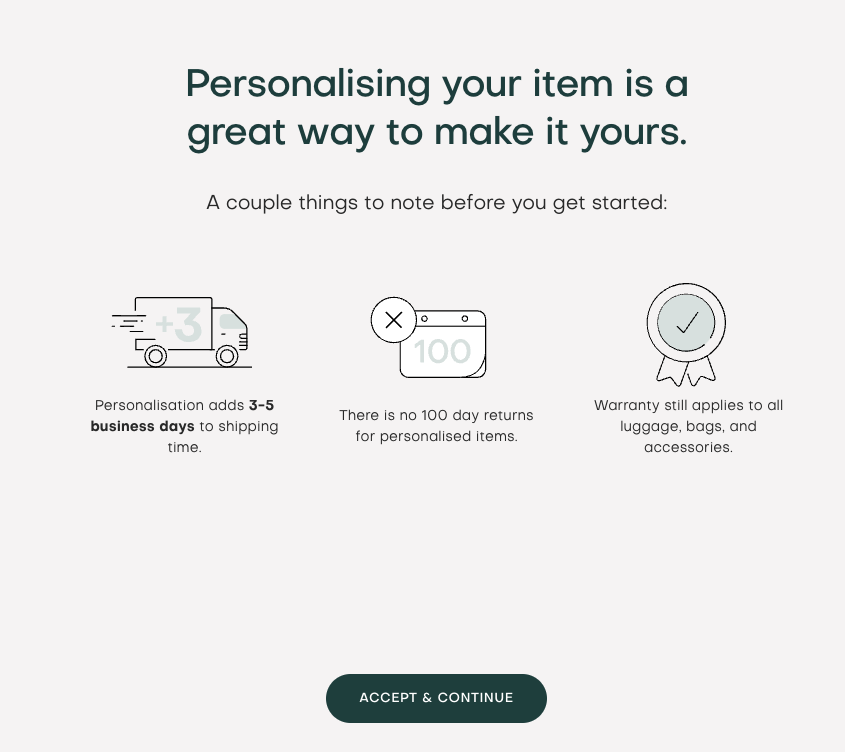
Before you proceed with creating your monogram, you will need review the following terms. If you agree, click "Accept and Continue".
STEP 3

Let's begin with choosing your Type and Style. We have a beautiful range of fonts and even support emojis as well! Please note that character limits will apply depending on your chosen font. Simply enter your chosen text and font, and click "Confirm".
STEP 4

Next, we'll choose a colour for your monogram. Depending on the font chosen, you may be asked to choose a colour and shadow colour. Once decided click "Confirm".'
STEP 5
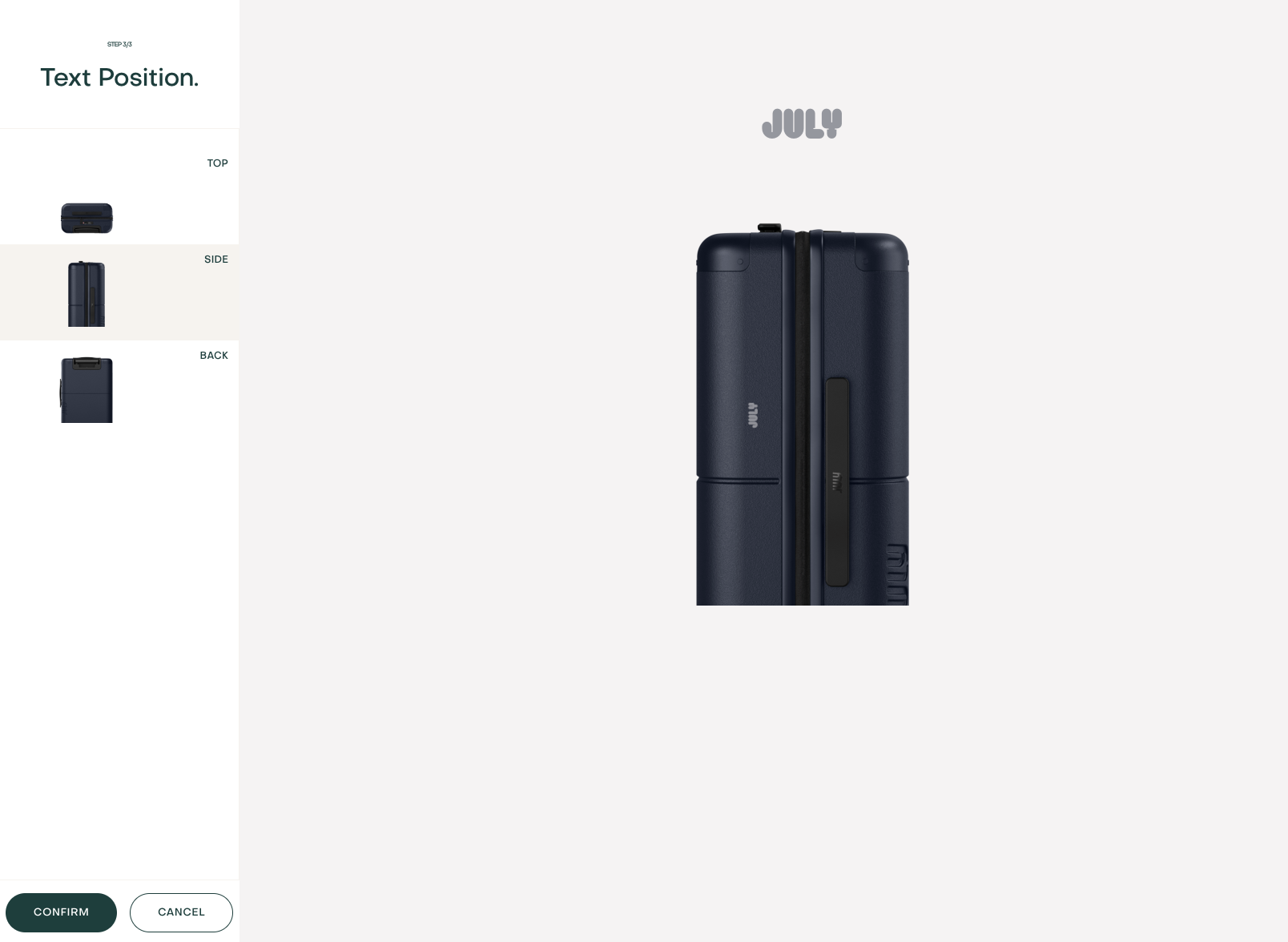
Lastly, you can pick the position of your monogram. Click "Confirm" once you've decided where you'd like your monogram to be displayed.
STEP 6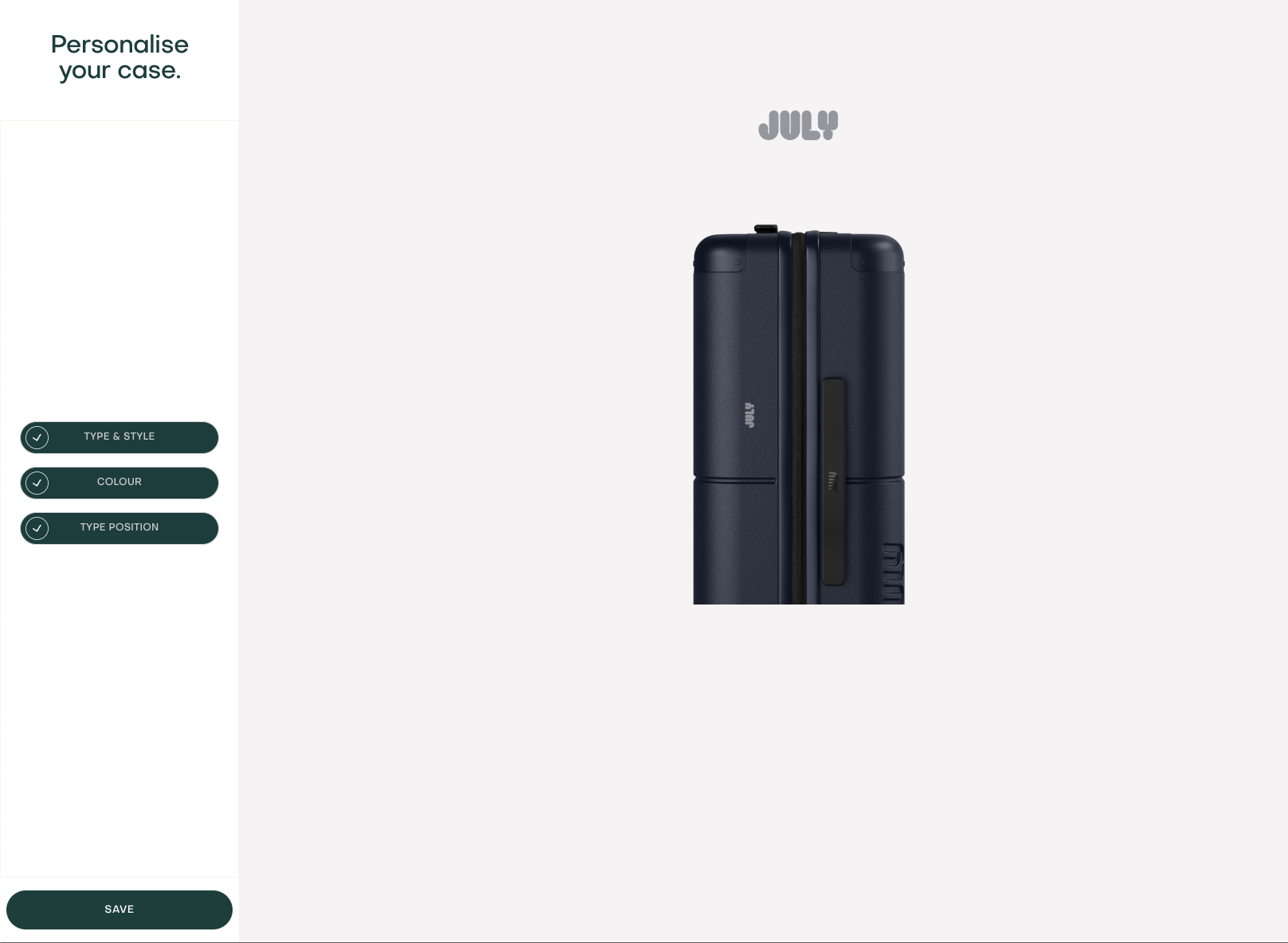
Let's take a look and confirm you are happy with the preview of your monogram. Once satisfied, click Save.

Your monogram will show where the "Add Personalisation" button previously was indicating your item is personalised. Simply click "Add to Cart" and voila! Your item will be added along with your monogram.